Importing Recipes
Building a recipe collection doesn't mean starting from scratch. Most cooks have recipes scattered across browser bookmarks, screenshots, handwritten cards, and half-remembered favorites from cooking websites. The problem is that bookmarks disappear, screenshots are impossible to search, and copied text loses all structure. cook.md converts recipes from any of these sources into structured .cook files you can edit, organize, and use across all your devices.
The Quick Way: Prefix Any URL
The fastest way to import a recipe from the web is to prepend cook.md/ to any recipe URL in your browser's address bar:
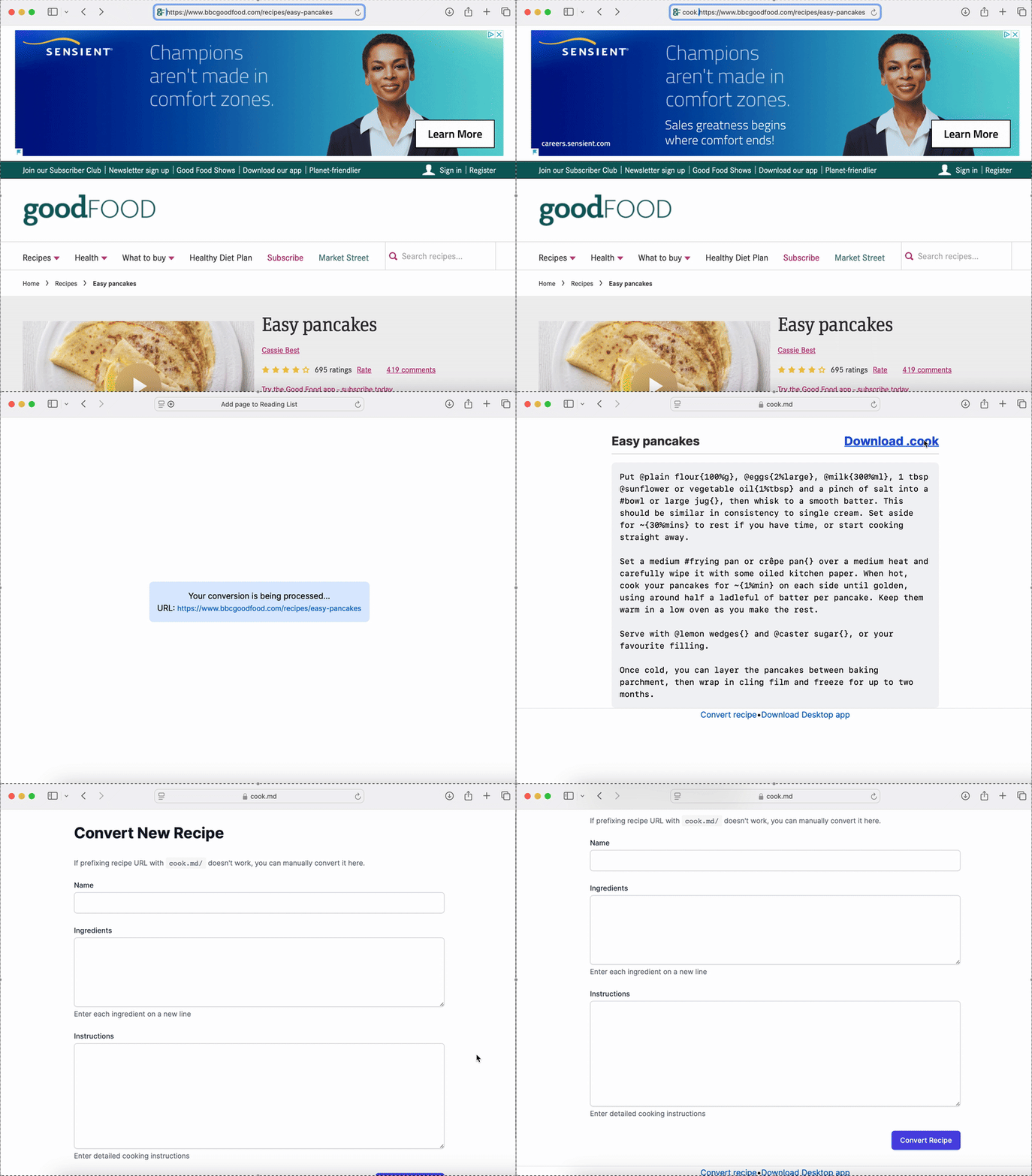
The converter extracts ingredients with quantities, step-by-step instructions, cooking times, servings, and the original source URL. You get a complete .cook file ready to copy into your collection.
Converting Text and Images
When you have recipe text from another source, or a photo of a recipe from a cookbook or handwritten card, use the manual converter at cook.md/cookifies/new.
It supports three input modes:
- URL -- for sites where the prefix trick doesn't work
- Plain text -- paste in recipe text from any source
- Image upload -- snap a photo of a cookbook page, handwritten card, or screenshot (JPEG, PNG, WebP, GIF)
What You Get
A converted recipe comes back as a complete Cooklang file with metadata and marked-up instructions. Here's an example of what a typical import looks like:
The frontmatter preserves source attribution automatically, so you always know where a recipe came from. Ingredients are marked up with quantities and preparation notes, and timers are embedded in the instructions -- the recipe is ready to cook from immediately.
See Also
- CLI Import Command - Batch importing and automation
- Getting Started - Setting up your recipe collection
- Meal Planning - Plan meals with your imported recipes